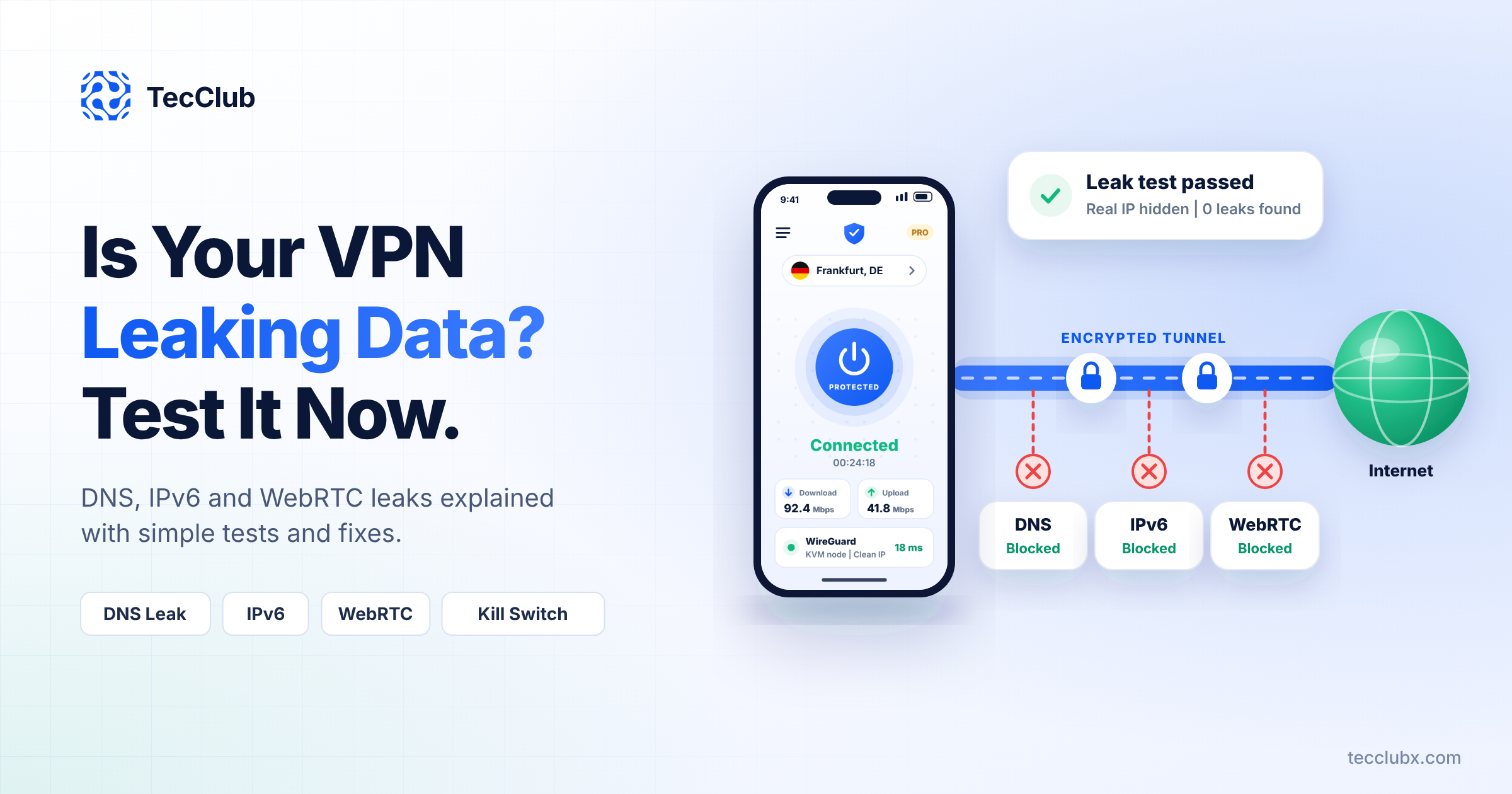
A VPN is supposed to hide your real IP address and protect your online activity. But sometimes, even when the VPN shows "Connected", some of your data still goes outside the encrypted tunnel. This is called a VPN leak. The user thinks they are protected, but their internet provider, websites or apps can still see information they wanted to keep private.
At TecClub, we build VPN apps for our own products and for clients, and leak protection is one of the first things we test. In this guide, we explain the three most common leaks, how to test for them in a few minutes, and how users and VPN developers can fix them.
What Is a VPN Leak?
When a VPN works correctly, all traffic from your device goes through the encrypted tunnel to the VPN server. A leak happens when some traffic takes a different path, outside the tunnel. The three most common types are DNS leaks, IPv6 leaks and WebRTC leaks.
1. DNS Leaks
Every time you open a website, your device first asks a DNS server for the address of that site. If these DNS requests go to your internet provider instead of through the VPN, your provider can see every website you visit, even though the actual traffic is encrypted.
Why it happens
- The device keeps using the DNS server set by the Wi-Fi or mobile network.
- The VPN app does not force DNS requests into the tunnel.
- Some operating system features send DNS requests on multiple network interfaces at the same time.
We explain how private DNS is built into VPN apps in our post on why custom DNS makes your VPN truly private.
2. IPv6 Leaks
Many networks now support both IPv4 and IPv6. If a VPN only protects IPv4 traffic, any website or app that connects over IPv6 can go around the tunnel and show your real IPv6 address.
Why it happens
- The VPN server or app does not support IPv6.
- The app does not route or block IPv6 traffic while connected.
The fix is simple in theory: a VPN should either send IPv6 traffic through the tunnel or block it completely while connected. Read more in our article on the importance of IPv6 support in modern VPN development.
3. WebRTC Leaks
WebRTC is a browser technology used for video calls and real-time features. To connect calls directly, it can discover your IP addresses. In some setups, a website can use WebRTC to see your real IP address even while the VPN is on.
Why it happens
- The browser allows WebRTC to share IP information with websites.
- The VPN does not capture all traffic at the system level.
Other Leaks to Watch
- Connection drop leaks: If the VPN disconnects for a moment, traffic can go out without protection. A kill switch prevents this. See how kill switch technology keeps you safe.
- Network switch leaks: When a phone moves from Wi-Fi to mobile data, there is a short moment where traffic can escape. Learn more in how VPN apps handle network switching without data leaks.
- Split tunneling mistakes: Apps that are excluded from the VPN will always use the normal connection, which is expected, but users should know which apps those are.
How to Test Your VPN for Leaks (5-Minute Check)
- Disconnect the VPN and note your real public IP address and your provider name on an IP check website.
- Connect the VPN to a server in another country.
- Open a DNS leak test website and run the extended test. You should only see DNS servers that belong to the VPN, not your internet provider.
- Open an IP leak test that checks IPv6. Your real IPv6 address should not appear.
- Open a WebRTC leak test in your browser. Your real public IP should not appear.
- Switch from Wi-Fi to mobile data, or turn the VPN off and on, and run the tests again.
Popular free tools include dnsleaktest.com, ipleak.net and browserleaks.com. If you see your real IP address or your provider's DNS servers while connected, your VPN is leaking.
How to Read Your Leak Test Results
Leak test websites show a lot of technical information. You only need to check a few simple things:
- IP address: The IP shown should belong to the VPN server and match the country you chose. If you see your home or mobile IP, the VPN is not working.
- DNS servers: The DNS servers listed should belong to the VPN provider or a privacy DNS service it uses. If you see the name of your internet provider, you have a DNS leak.
- IPv6 address: You should see either no IPv6 address or one that belongs to the VPN. If your real IPv6 address appears, you have an IPv6 leak.
- WebRTC section: It may show a local address such as 192.168.x.x. That is normal. A problem only exists if your real public IP appears there.
Example: You connect to a server in Germany. The test shows a German IP address, but the DNS section lists your local internet provider. This means your browsing is encrypted, but your provider can still see which websites you visit. This is a DNS leak, and it should be fixed in the app settings or by the VPN developer.
Free Tools to Test VPN Leaks
| Tool | What it checks | Best for |
|---|---|---|
| dnsleaktest.com | DNS servers used by your device | Quick and extended DNS leak checks |
| ipleak.net | IPv4, IPv6, DNS and WebRTC in one page | A fast all-in-one check |
| browserleaks.com | WebRTC and other browser details | Deep checks of browser leaks |
How to Test on Different Devices
Android
Connect the VPN, open Chrome and run the tests above. Then switch between Wi-Fi and mobile data and test again. Also open Settings, Network and VPN, and check that "Always-on VPN" and "Block connections without VPN" are turned on for your VPN app.
iPhone and iPad
Connect the VPN, run the tests in Safari, then switch from Wi-Fi to mobile data and run them again. Leaks on iOS often appear during network changes, so this second test is important.
Windows and Mac
Test in every browser you use, because WebRTC settings are different in each one. If your computer has both Wi-Fi and a cable connected, test with both, as traffic can sometimes use the second connection.
How Users Can Fix VPN Leaks
- Turn on the VPN app's DNS leak protection and kill switch, if available.
- On Android, enable "Always-on VPN" and "Block connections without VPN" in system settings.
- If your VPN does not support IPv6, ask the provider or disable IPv6 on your network.
- Limit WebRTC in your browser settings or use a trusted extension.
- Keep your VPN app updated, because many leak fixes come in updates.
How VPN Developers Prevent Leaks
For a VPN business, leaks are not only a privacy problem. They also damage trust and reviews. This is how a well-built VPN app prevents them:
| Leak type | How a good VPN app prevents it |
|---|---|
| DNS leak | Sets its own DNS servers and sends all DNS requests through the tunnel. |
| IPv6 leak | Routes IPv6 through the tunnel, or blocks it while connected. |
| WebRTC leak | Captures all device traffic at the system level, so the browser has no other path. |
| Connection drop | Uses a kill switch and blocks traffic until the tunnel is back. |
| Network switch | Reconnects quickly and keeps traffic blocked during the change. |
Leak protection should be tested on every release, on different devices, networks and protocols such as WireGuard, OpenVPN and IKEv2. Server setup matters too, as we explain in our guide on how to choose a VPS provider for VPN servers.
Frequently Asked Questions
Can a VPN leak even when it says "Connected"?
Yes. The connection status only shows that the tunnel is up. DNS, IPv6 or WebRTC traffic can still go outside the tunnel if the app is not built to prevent it.
Are free VPNs more likely to leak?
Not always, but many free VPNs skip advanced protection like IPv6 handling and kill switches. Always test any VPN you use.
Does a kill switch stop all leaks?
A kill switch protects you when the VPN drops. It does not fix DNS or IPv6 leaks on its own, so a VPN needs all protections together.
How often should I test my VPN?
Test it when you first install it, after major app or system updates, and whenever you change networks often, such as when traveling.
Building a Leak-Proof VPN App?
TecClub builds VPN apps with DNS leak protection, IPv6 handling, kill switch and multi-protocol support, and we test every release for leaks.