Mobile apps get most of the attention, but a lot of VPN subscribers also want protection on their laptop. Remote workers, travellers on hotel Wi-Fi and business customers often ask for a desktop app before they ask for anything else. If your VPN only runs on phones, a paying user who opens their MacBook or Windows laptop has nothing to install.
A desktop VPN client is not just the mobile app on a bigger screen. Windows and macOS handle networking, permissions, installers and updates in their own ways. This guide explains what it takes to build a VPN client for Windows and macOS, the decisions to make early, and the problems that usually show up only after release.
How a Desktop VPN Client Is Built
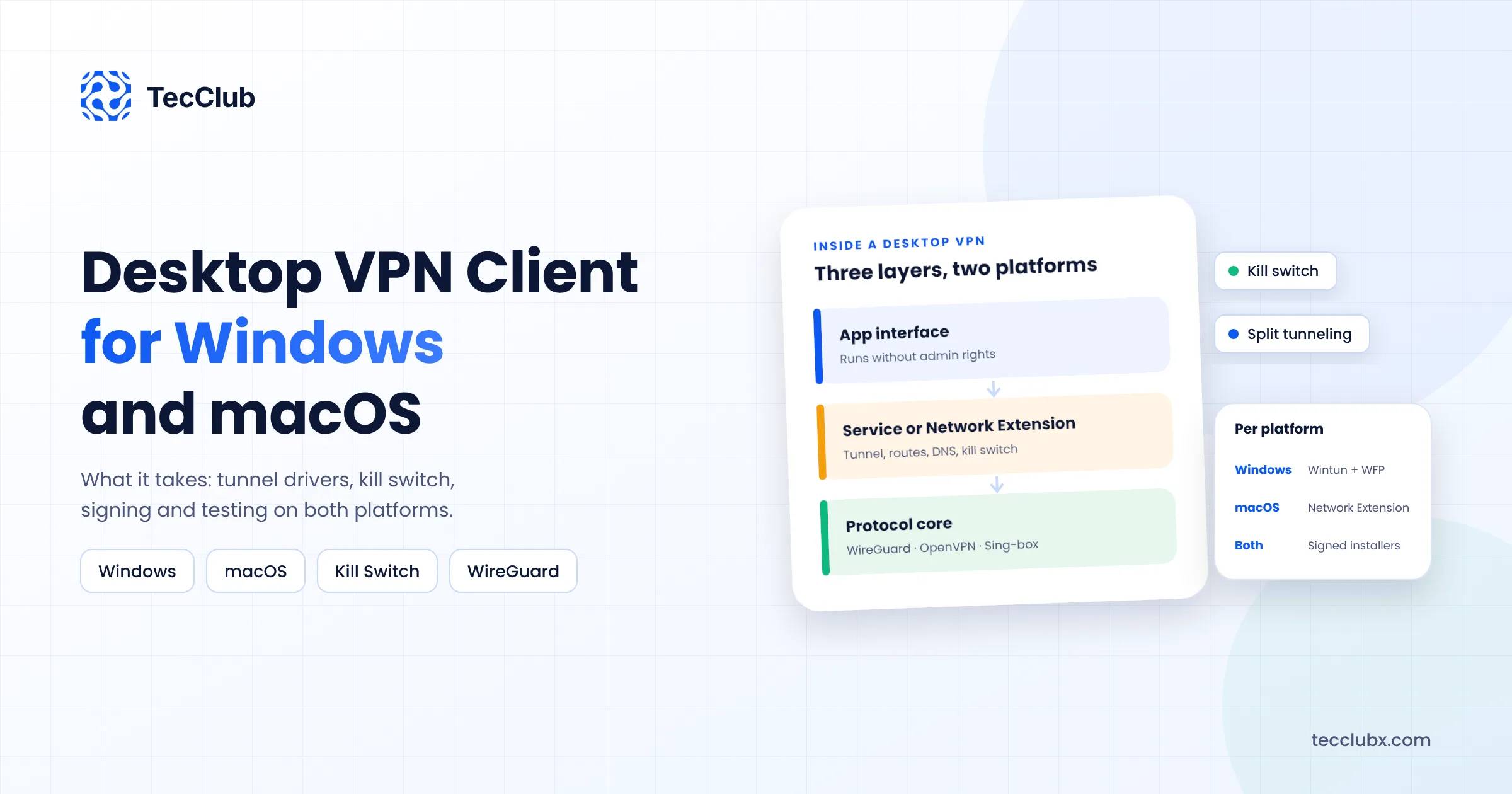
Almost every desktop VPN app has three parts:
- The user interface: connect button, server list, settings and account. It runs as a normal app without special rights.
- A privileged background part: on Windows this is usually a system service, on macOS a Network Extension. It creates the tunnel, changes routes and DNS, and enforces the kill switch.
- The protocol core: WireGuard, OpenVPN, or a multi-protocol core such as Sing-box for VLESS, Hysteria2 and Shadowsocks.
Keeping the interface and the privileged part separate matters. It means the app does not need to run as administrator, it is safer, and the VPN can stay connected even if the user closes the window.
Building the Windows Client
The tunnel driver
Windows needs a virtual network adapter for the tunnel. Most modern clients use Wintun, the lightweight adapter driver from the WireGuard project, or WireGuardNT for WireGuard connections. Older OpenVPN setups used the TAP driver, which still works but is slower and heavier.
A Windows service
The tunnel, routes and firewall rules are managed by a background Windows service. The user interface talks to it through a local channel such as a named pipe. This is also what lets the VPN start automatically when Windows boots.
Kill switch and leak protection
On Windows, a reliable kill switch is built with the Windows Filtering Platform (WFP): firewall rules that block traffic outside the tunnel. The same rules help stop DNS leaks, since Windows can send DNS queries through every network adapter at once. Block IPv6 if your servers do not support it, or it can leak around the tunnel.
Installer and signing
Windows VPN apps usually ship as a signed installer (MSI or EXE) from your website. Sign every installer and driver with a code signing certificate. Unsigned or new installers often trigger Microsoft SmartScreen warnings, which scare users away before they even install.
Building the macOS Client
Network Extension
On macOS, the tunnel runs inside a Network Extension packet tunnel provider, the same framework used on iPhone. If you already have an iOS app, much of the Swift tunnel code can be shared. Our guide to building an iOS VPN app with NetworkExtension covers that part.
App Store or direct download
This is one of the first decisions to make, because it changes how the app is built:
- Mac App Store: the tunnel ships as an app extension inside the app, subscriptions go through Apple, and updates come through the store.
- Direct download: the app is signed with a Developer ID and notarized by Apple, and the Network Extension is packaged as a system extension that the user approves in System Settings. You handle updates yourself.
Many VPN brands offer both. Plan the difference from the start, as switching later means reworking signing, packaging and payments.
Kill switch on macOS
Apple's VPN settings include an option to route all network traffic through the tunnel, which acts as a system level kill switch. Test it carefully with local network access, AirDrop and printers, since users will notice if those stop working.
Choosing the UI Technology
| Option | Good for | Watch out for |
|---|---|---|
| Native (WinUI or WPF, SwiftUI) | Best feel and performance on each platform | Two separate UI codebases |
| Flutter desktop | Sharing UI with your Flutter mobile app | Native code still needed for the tunnel |
| Electron or Tauri | Teams with strong web skills | App size and memory use, mainly with Electron |
Whatever you choose for the interface, the tunnel, service and extension are always written natively for each platform.
Features Desktop Users Expect
- Tray or menu bar icon with quick connect and status
- Launch at startup and auto-connect on untrusted Wi-Fi
- Kill switch that survives sleep, restarts and network changes
- Split tunneling by app or website, a common request from remote workers
- Auto-updates, so security fixes reach every user quickly
- One account across all devices, with the same subscription working on phone and desktop
Testing Before Release
Desktop environments vary far more than phones. Before launch, test on:
- Different Windows 10 and 11 builds, and both Intel and Apple Silicon Macs
- Sleep and wake, switching Wi-Fi networks, and docking stations
- Machines with antivirus software or corporate firewalls installed
- DNS, IPv6 and WebRTC leaks with the tunnel up. Our VPN leak testing guide explains what to check
- Clean install, update and uninstall, so no driver or firewall rule is left behind
Final Thoughts
A desktop client turns a mobile VPN into a complete product, and it is often what business and remote work customers ask for first. The protocol core and backend can be shared with your mobile apps. The real work is platform specific: a Windows service with Wintun and WFP, a macOS Network Extension with the right distribution model, signing and notarization, and testing on the messy range of machines people actually use. If you plan to support several protocols on desktop, a shared core like Sing-box keeps things manageable, as we explain in why Sing-box is ideal for custom VPN app development.
Need a VPN App for Windows and macOS?
TecClub builds desktop VPN clients for Windows and macOS alongside Android, iOS and TV apps, with kill switch, split tunneling, signed installers and one backend for every platform.
Talk to us about a desktop VPN app or email us at [email protected].