A lot of VPN users never open the app on their phone. They want it on the TV in the living room, where they watch sport, shows and films. If your VPN only runs on phones, those users either set up a VPN on their router, use a competitor's TV app, or leave.
The good news is that Android TV and most Fire TV devices run Android, so your existing Android VPN code is a strong starting point. The less good news is that a TV is not a big phone. Navigation, sign-in, payments and store review all work differently. This guide explains how to build a VPN app for Android TV and Fire TV, and what usually needs to change from the phone version.
What Stays the Same
The VPN engine itself barely changes. Android TV uses the same VpnService API as phones, so the tunnel, the protocol cores (WireGuard, OpenVPN, VLESS and others through Sing-box or Xray) and your backend can be shared. If you have not built the Android side yet, start with our guide on building an Android VPN app with VpnService.
The work is mostly in the layer around it: the interface, the way users sign in and pay, and how the app is packaged and reviewed for TV.
1. Make the App a Real TV App
An Android app does not appear on the TV home screen just because it installs. To be treated as a TV app, it needs:
- An activity with the
LEANBACK_LAUNCHERintent category, so it shows on the TV home screen - A TV banner image (
android:banner) that the launcher shows as the app tile - The
android.software.leanbackfeature declared, and touchscreen marked as not required
Many teams ship one APK or app bundle for phone and TV, with a separate TV interface that loads when the app runs on a TV. Others keep a separate TV module. Both work. The shared module approach is usually easier to maintain.
2. Design for the Remote, Not the Finger
On TV, users move with a D-pad: up, down, left, right and select. Everything has to be reachable that way, and the user must always be able to see where the focus is.
- One big Connect button, focused by default when the app opens.
- Clear focus states: a strong highlight or scale effect on the selected item. A small colour change is not enough from three metres away.
- Short server lists with search and favourites. Scrolling through 80 countries with a remote is painful. Put recent and recommended locations first.
- Large text and safe margins. Keep content away from screen edges, as some TVs crop them.
- No hidden gestures. Swipe actions, long press and small icons from the phone app do not translate.
For new TV interfaces, Google now recommends Jetpack Compose for TV, which has components built for focus and D-pad navigation.
3. Fix Sign-In
Typing an email and password with a remote is the fastest way to lose a user. Better options:
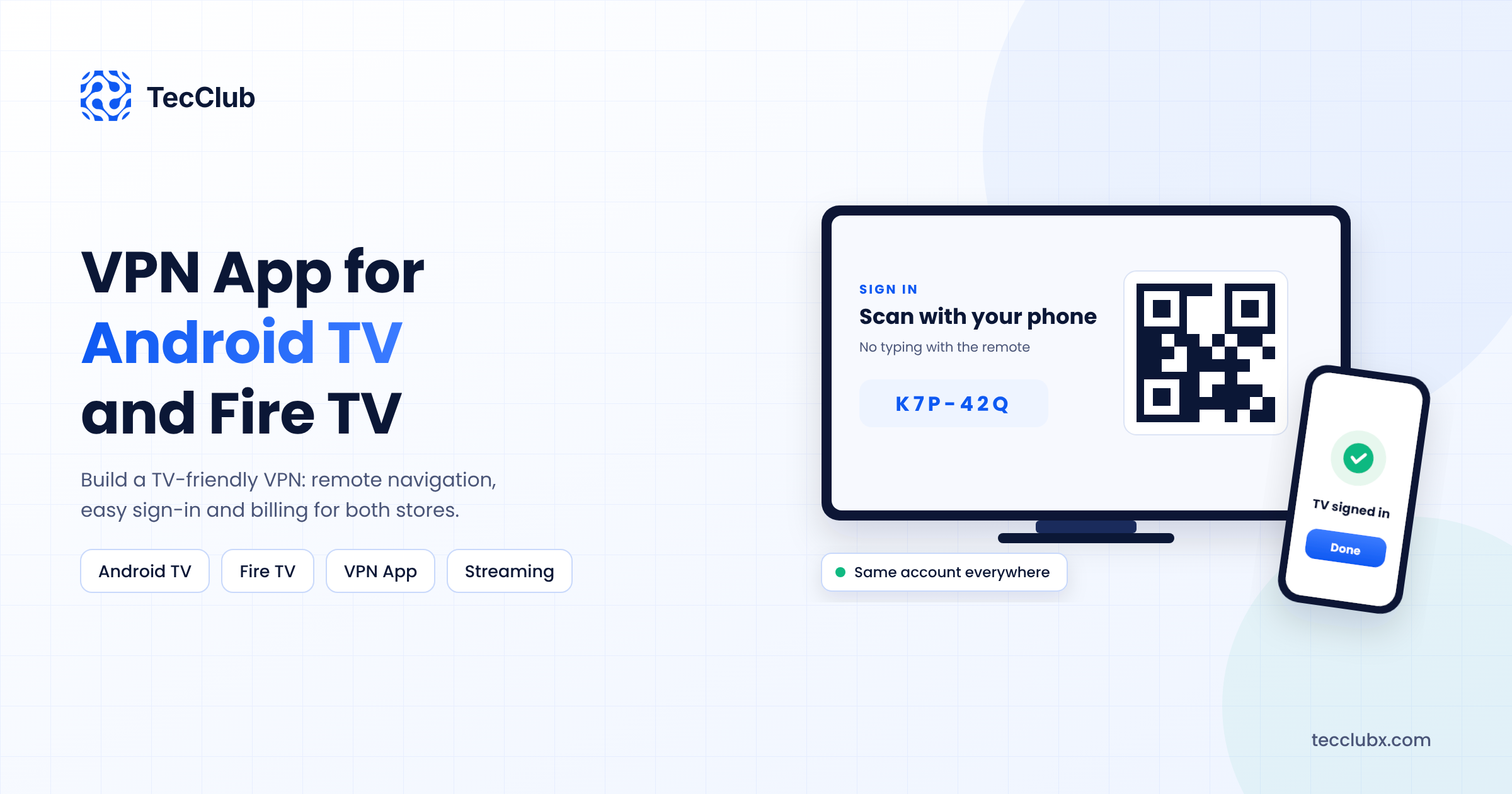
- QR code or device code login: the TV shows a code, the user signs in on their phone, and the TV logs in automatically.
- Sign in from the phone app: if the user already has your mobile app, let them approve the TV from there.
- Short activation codes instead of long passwords.
This one change often decides whether a TV app gets good reviews.
4. Handle Payments on Each Store
On Android TV devices with Google Play, subscriptions go through Google Play Billing, just like on phones. Fire TV apps are distributed through the Amazon Appstore and use Amazon's In-App Purchasing API instead. That means a second billing integration and server-side verification for Amazon receipts.
Many VPN apps also let users subscribe on their phone or website and simply sign in on the TV. Make sure one account works across all platforms, so a user who pays on one device is Premium everywhere. Our guide on adding in-app subscriptions to a VPN app covers the shared backend side.
5. Features That Matter More on TV
- Auto-connect on start: TVs are often switched on and off at the wall. Reconnect automatically when the device boots or the network comes back.
- Split tunneling: users may want only one streaming app inside the VPN and everything else outside it. See split tunneling explained.
- Status inside the app: phone users glance at the notification shade. TV users cannot, so show connection status clearly in the app itself.
- Fast server switching: a quick way to change location without going back through menus.
6. Test on Real, Cheap Devices
Many users watch on low-cost streaming sticks with limited memory and slow processors. An app that runs smoothly on a high-end Android TV box can lag badly on a budget stick. Test on:
- A Google TV or Android TV device
- At least one Fire TV Stick model
- Both Wi-Fi and Ethernet connections
- Long sessions of streaming with the VPN on, not just quick speed tests
Also note that Amazon has started moving some newer Fire TV devices to its own Vega OS, which does not run Android apps. Check which Fire TV models your users have before you plan the release.
7. Store Review for TV
Google Play reviews TV apps separately against its TV app quality guidelines. You need to opt in to the Android TV form factor in Play Console, provide TV screenshots and a TV banner, and make sure every screen works with a D-pad. The Amazon Appstore runs its own review for Fire TV. Plan for both, and expect at least one round of fixes the first time.
Final Thoughts
A TV app is one of the most practical ways for a VPN brand to grow, because streaming is one of the main reasons people pay for a VPN. The VPN core can come from your Android app. What needs real work is the TV experience: remote-friendly navigation, painless sign-in, the right billing for each store and testing on the cheap devices your users actually own.
Want Your VPN on the Big Screen?
TecClub builds VPN apps for Android TV and Fire TV alongside mobile and desktop, with TV-friendly interfaces, QR login, Google Play and Amazon billing, and one backend for all platforms.
Talk to us about a TV app or email us at [email protected].